Booking Lifecycle - Email Templates and Transmission
Introduction
During the life of a booking, our system will transmit several emails to different parties.
Configuration is required to control many aspects of this including
Which emails are sent
To whom they are sent and copied to
From what address they are sent
The templates that are used in the generation of the emails
The languages that are used within the emails.
The Emails
The system currently supports the following emails.
Booking Emails
Booking type emails combine a list of booking availabilities. These emails are typically sent when the state of relevant booking availabilities changes.
To enhance user experience, booking emails can reflect the availability status. For instance, if all availabilities are canceled, the booking can be shown as canceled, or a warning can be included indicating that some availabilities have been canceled.
Template | Possible Recipients | Notes and Conditions |
|---|---|---|
Booking Acknowledgement Sent immediately after the booking changes have been committed. |
| This email is sent immediately upon receipt of a request to change a booking. It is triggered when any of the booking availabilities are in a pending state and are about to be committed, canceled, or amended. |
Booking Summary Sent once the booking changes have been confirmed. This is commonly only a few minutes after the acknowledgement email. |
| This email is sent once all pending booking availability changes have been confirmed, and payments have been processed. Typically, this occurs within a few minutes after the request to commit the booking. However, in cases where failures occur due to downstream systems or when one or more products on the booking require acknowledgment from the supplier/operator, the delay may be greater. |
Booking Failure Dispatched to our internal support team in the event when a booking fails to complete through the standard operational process. |
| Sent in the event of failure of any part of the commit process whether internal or as a result of errors returned by source systems. Email usually includes technical details of an error. IN PROGRESS - only OnCall email are currently supported. IN PROGRESS - given that an email can comprise various booking availabilities, it is possible for some availabilities to be in a failed state. The communication of this failed state to the consumer via the Booking Summary email is not always desirable behaviour. IN PROGRESS - the distribution of failure emails to Channel and Agent, as well as the level of technical detail included in these emails, is currently under discussion |
Booking Availability Emails
Booking availability type emails are sent for each individual booking availability, typically when the availability is confirmed, canceled, or reminded.
Template | Possible Recipients | Notes and Conditions |
|---|---|---|
Booking Availability Confirmation Sent to advise that a booking availability has been successfully confirmed. |
| Sent only for INTERNAL products to advise the supplier of a booking confirmed for one of their products. |
|
(07/06/2024) requested by @a user not to send these as “already have the Stripe notification turned on for new bookings“. | |
Booking Availability Cancellation Sent to advise that a booking availability has been successfully cancelled. |
| Sent only for INTERNAL products to advise the supplier of a booking cancelled for one of their products. |
| Sent only for production booking availabilities. | |
Booking Availability Confirmation Request Sent for any INTERNAL product that is marked as ON_REQUEST to confirm the booking availability. |
| Sent only for INTERNAL products and only where the product is configured for ON_REQUEST. This email contains a button that links back to Extranet allowing the supplier to either accept or reject the booking availability. The consumer will not receive a Booking Summary until the supplier has taken action. |
Booking Availability Cancellation Request Sent for any INTERNAL product that is marked as ON_REQUEST to accept cancellation of the booking availability. |
| Sent only for INTERNAL products and only where the product is configured for ON_REQUEST. This email contains a button that links back to Extranet allowing the supplier to either accept cancellation or reject the booking availability. The consumer will not receive a Booking Summary until the supplier has taken action. |
Booking Availability Pre Arrival Instructions Sent two days (or less) prior to the start of the booking availability. The email contains any pre-arrival information that is configured on the product. |
| PLANNED for BLM Milestone 5 Sent only if the product has a content section for PRE_ARRIVAL_INSTRUCTIONS, which may be entered via the Product Domain UX. |
Booking Availability Reminder Email Sent a few days prior to the start of the booking availability. |
| NOT IMPLEMENTED |
Booking Availability Pending Reminder Email Sent when the booking availability has been marked for cancellation or amendment, but the change was not committed. |
| NOT IMPLEMENTED |
Booking Availability Feedback Email Sent when the booking availability has finished, and we seek to gather feedback about the experience. |
| NOT IMPLEMENTED |
Important Notes
External Parties
Consumer, Agent, Channel, and Supplier are considered external parties.
Although the same template is utilised for different recipients, it's not always the case that the email has the same subject or content. Certain recipients may require different subject line formatting for improved traceability; or inclusion of additional information in the content (e.g., price breakdown). Moreover, different recipients may require emails in languages other than the booking language. It's important to note that when the system sends emails to different parties, it sends individual copies and does not utilise the CC function. This is to ensure that the addresses of other parties involved in the transaction are not inadvertently disclosed in the transaction.
In transactions involving agencies, it's common for emails to be duplicated to the agent who made the booking and, in some cases, to a central email address for the agency and/or the partner. For further details, refer to the configuration section below.
Internal Parties
The Customer Support Team (referred to as Holibob), OnCall, and Finance are considered internal parties.
Holibob receives all types of emails in English for every relevant production booking, detailing the recipients and reasons why certain emails were not sent. The only exceptions are:
Booking Availability Confirmation/Cancellation email is not sent if the product is not INTERNAL.
Booking Availability PreArrival Instruction email is not sent if the product does not have PRE_ARRIVAL_INSTRUCTIONS.
Booking Availability Confirmation/Cancellation Request email is not sent if the product is not INTERNAL and is not ON_REQUEST.
Additionally, Holibob receives a BCC of every email sent to other parties (excluding Finance and OnCall) and, upon request, forwards a copy of the email if one of the parties cannot locate the original.
Logging
All email transactions are tracked in our logging system, which consistently specifies the log code, email subject, sent time, and the recipients of an email. Furthermore, the system logs the reasons for omitting specific recipients from receiving emails. Please see Email Sender Logic & Entity Configuration - Holibob Technology - Confluence (atlassian.net) for the actual log structure.
TODO - the support team can see the email logs in a user-friendly format per individual Booking.
Configurations
PLANNED - implementation and migration of configuration is yet to be done.
Our systems include a feature known as Entity Configuration. This allows many different settings to be applied across the hierarchy of Business Principals. Any setting that is set at The Company (Holibob) level will apply to all partners, channels, users etc in the system unless this same setting is overwritten at a lower level. Equally a setting made at the Partner level will be applied to all of their channels unless the same setting is applied differently to one or more channels.

There are many other entity configuration available to the implementation team. This list is limited to those most relevant to the booking completion flows.
Name & Description | Config Name | Company Value |
|---|---|---|
CONTENT Used to inject information into emails, vouchers and the White-label sites. | ||
Content - Appended to Supplier Booking Confirmation Set for each language - Appears at the end of each supplier booking confirmation email. | SUPPLIER_CONFIRMATION_BODY_CONTENT | |
Content - Appended to Supplier Onboarding Set for each language - Appears at the end of each onboarding email. | ||
Content - Consumer Disclaimer Set for each language - Controls the text that appears in the footer of all consumer emails. | CONSUMER_EMAIL_DISCLAIMER
| The content of this email is confidential and intended for the recipient specified in message only. It is strictly forbidden to share any part of this message with any third party, without a written consent of the sender. If you received this message by mistake, please reply to this message and follow with its deletion, so that we can ensure such a mistake does not occur in the future. |
Content - Customer Service Phone number Set to phone number - Appears on all consumer communications including vouchers | CUSTOMER_SERVICE_PHONE_NUMBER | +44 20 805 09518 |
Content - Customer Service Email Address Set to an email address but used as text - Appears on all consumer communications including vouchers | CUSTOMER_SERVICE_EMAIL_ADDRESS | bookings@holibob.tech |
Content - Postal address for Footer Set for each language - Appears in the footer of all emails. | SUPPLIER_SERVICE_PHONE_NUMBER | |
Content for Supplier Service Email Address Set to email address but used as text - Appears on all supplier communications | SUPPLIER_SERVICE_EMAIL_ADDRESS | |
ENABLEMENT (YES/NO) Used to control functionality of email and booking flow | ||
Enable Notifications to Consumer When true - Sends acknowledgement, summary and pre-arrival-instructions to the Consumers's email. | ENABLE_CONSUMER_NOTIFICATION
| YES |
Enable Notifications to Supplier When true - Sends Internal Product confirmations and cancellations to the Supplier's email. | ENABLE_SUPPLIER_NOTIFICATION | YES |
Direct Application Enable Notifications to Consumer hen true - Sends consumer emails when the booking was created by API partners. | ENABLE_DIRECT_APPLICATION_CONSUMER_NOTIFICATION | YES |
Enable Consumer Notifications to Agent When true - Sends acknowledgement, summary and pre-arrival-instructions to the Agent's email. | ENABLE_AGENT_CONSUMER_NOTIFICATION
| NO |
Enable Consumer Failure Notifications to Agent When true - Sends a copy of all booking failures to the Agent's email address. | ENABLE_AGENT_CONSUMER_FAILURE_NOTIFICATION
| NO |
Enable Consumer Notifications to Channel When true - Sends a copy of consumer related emails to the Partner Channel’s email address. | ENABLE_CHANNEL_CONSUMER_NOTIFICATION | NO |
Enable Supplier Notifications to Channel When true - Sends a copy of supplier related emails to the Partner Channel’s email address. | ENABLE_CHANNEL_SUPPLIER_NOTIFICATION | NO |
Enable Supplier BCC Notifications to Channel When true - Sends a hidden copy (BCC) of supplier related emails to the Partner Channel’s email address. | ENABLE_CHANNEL_SUPPLIER_BCC_NOTIFICATION | NO |
Enable Failure Notifications to Channel When true - Sends a copy of all booking failures to the Partner Channel’s email address. | ENABLE_CHANNEL_CONSUMER_FAILURE_NOTIFICATION | NO |
FROM Addresses Used to control the email address from which certain emails are sent. | ||
Holibob Default Set to an email address - default address if nothing else | N/A | bookings@operations.holibob.tech |
FROM Email Address (Default) Set to an email address - Causes all outbound consumer emails to be sent from this address. Requires domain setup by the partner and tech. | SENDER_EMAIL_ADDRESS_DEFAULT | |
Requires domain setup by the partner and tech. |
| |
Requires domain setup by the partner and tech. |
| |
RECIPIENT Addresses Used to enable to duplication of certain emails to additional addresses In all cases all emails are also sent to The Company (Holibobs) internal customer services inbox | ||
Holibob Default Set to an email address - causes all Holibob (including BCC) emails to be sent to this address | N/A | holibobbookings@holibob.tech |
OnCall Default Set to an email address - causes all failure emails to be sent to this address | N/A | oncall@holibob.tech |
Finance Default Set to an email address - causes all finance emails to be sent to this address | N/A | partnerfinance@holibob.tech |
Global Address for all Consumer Notifications Set to an email address - Causes all consumer emails to be duplicated to this address - typically used in agent setups. | CHANNEL_CONSUMER_NOTIFICATION_EMAIL_ADDRESS
| |
Global Address for all Supplier Notifications Set to an email address - Causes all supplier emails to be duplicated to this address. | CHANNEL_SUPPLIER_NOTIFICATION_EMAIL_ADDRESS
| |
Global Address for all Booking Failures Set to an email address - Causes all booking failures emails to be duplicated to this address. | CHANNEL_FAILED_BOOKING_NOTIFICATION_EMAIL_ADDRESS
| |
Reply-To Addresses The email address used when replying to any email that is sent from the booking system | ||
Default Set to an email address - all replies to booking system emails to be routed here | N/A | holibobbookings@holibob.tech |
Communications - REPLY-TO Email Address (Consumer Only) Set to an email address - Causes all replies to consumer booking transactional to be routed here Requires domain setup by the partner and tech. | CONSUMER_REPLY_TO_EMAIL_ADDRESS | |
TEMPLATES Used to determine which template is loaded to generate a given email. Where these are not set the system default templates will be used | ||
TemplateId - for Booking Acknowledgement Email Set to the ID of a SystemTemplate - Controls the design of the email sent after a booking is committed to the source. | EMAIL_BOOKING_ACKNOWLEDGEMENT_TEMPLATE_ID
| eaa07e92-cb93-11ec-82e2-06a93a7b20b5 |
TemplateId - for Booking Summary Email Set to the ID of a SystemTemplate - Controls the design of the email sent when booking changes have been confirmed. | EMAIL_BOOKING_SUMMARY_TEMPLATE_ID
| 91bfd3a9-7dbb-11ec-8d17-06fbe1941b5f |
TemplateId - for Consumer On Arrival Instructions email Set to the ID of a SystemTemplate - Controls the design of the email sent to consumers about ob arrival instructions. | EMAIL_BOOKING_AVAILABILITY_ON_ARRIVAL_INSTRUCTIONS_TEMPLATE_ID | 26b47ef3-da18-11ee-b580-061aef1a49c3 |
TemplateId - for Booking Availability Confirmation Email Set to the ID of a SystemTemplate - Controls the design of the email sent when booking availability changes the state to confirmed. | EMAIL_BOOKING_AVAILABILITY_CONFIRMATION_TEMPLATE_ID | 4672b750-c091-11ec-985b-0694cb7dd74f |
TemplateId - for Booking Availability Cancellation Email Set to the ID of a SystemTemplate - Controls the design of the email sent when booking availability changes the state to cancelled. | EMAIL_BOOKING_AVAILABILITY_CANCELLATION_TEMPLATE_ID | 6b674072-edd9-11ee-9ca6-067d384bcad5 |
TemplateId - for Booking Availability On Request Confirmation Email Set to the ID of a SystemTemplate - Controls the design of email sent to the supplier to confirm the booking availability confirmation request. | EMAIL_BOOKING_AVAILABILITY_ON_REQUEST_CONFIRMATION_TEMPLATE_ID | 5ce40089-630b-40f5-880d-e784146c5d11 |
TemplateId - for Booking Availability On Request Cancellation Email Set to the ID of a SystemTemplate - Controls the design of email sent to the supplier to confirm the booking availability cancellation request. | EMAIL_BOOKING_AVAILABILITY_ON_REQUEST_CANCELLATION_TEMPLATE_ID | ca610746-6c54-4a1b-af95-b80cbe003496 |
TemplateId - for Booking Failure Email Set to the ID of a SystemTemplate - Controls the design of the email sent when booking or booking availability fails. | EMAIL_BOOKING_FAILURE_TEMPLATE_ID | cb361d8d-8461-4f34-bc6d-64bdaa1052a1 |
OTHER | ||
URL for Manage My Booking When active it replaces confirmation manage my booking CTA link. | MANAGE_MY_BOOKING_URL_TEMPLATE | Default’s to Holibob White-Label address. |
Enable Communications Manage My Booking Button When active it Displays the 'Manage My Booking' button emails and vouchers. | ENABLE_MANAGE_MY_BOOKING_BUTTON | YES |

The Recipients and the subject lines
Emails may be sent to any of the following parties
Holibob General Booking -
HARD CODEDas:HolibobBookings@holibob.tech(this would make more sense asGeneralBookings@holibob.tech)Holibob General Finance -
HARD CODEDas:PartnerFinance@holibob.techThe PartnerChannel Central Mailbox - from EntityConfiguration
The Agent - from the Agent user profile
The Consumer - from the lead passenger email booking question
The Supplier - from the Supplier profile (internal products only)
The logic for each email will construct an array of
Recipient Type: ie the Consumer, Agent, Supplier, ChannelGlobal etc
Email Address: the actual address that was determined
Subject Line: the subject line that would appear in the recipients in-box
Omitted Reason: Any reason that this email was NOT sent. ie “No agent present” or “Not configured” or “Sent previously”
The FROM address should always be read from EntityConfiguration. Note there is a default value and a specific value for consumer communications
Every email is ALWAYS sent to our central mailbox holibobbookings@holibob.tech and then conditionally sent to others with a modified subject line.
Subject Lines depend on who the recipient is
where
<template> - the name of the template ie "Booking Summary"
<code> - the Booking.code or the BookingAvailability.code
<leadName> - the LeadPassengerName
<productName> - the ProductName in the correct language
<channel> - the name of the PartnerChannel ie "House of Travel"
<consumptionDate> - the date of consumption in product local time WITH TIMEZONE
<consumptionTime> - the time of the consumption in product local time
Thus the subjects are
Recipient | Subject Constructor | Example |
|---|---|---|
Holibob General Booking Internal Shared Mailbox All outbound emails are sent to the Holibob General Bookings mailbox for the purposes of monitoring. | <channel> - <template>: <code> for <leadName> | House of Travel - Booking Confirmation: ABC123 for Graeme Bryce |
Holibob General Finance Internal Shared Mailbox Some messages may be sent to the holibob finance team | ||
Partner Channel External Mailbox Subject to configuration some emails may be sent to an external central mailbox operated by the Partner | <template>: <code> for <leadName> | Booking Confirmation: ABC123 for Graeme Bryce |
The Consumer Subject to configuration some emails may be sent to the consumer (aka Lead Passenger) However this can be disabled thus allowing the agent to control all communication with the consumer | <channel> - <template>: <code> | House of Travel - Booking Confirmation: ABC123 |
The Agent | <template>: <code> for <leadName> | Booking Confirmation: ABC123 for Graeme Bryce |
The Supplier | <channel> - <template>: <code> for <productName> | House of Travel - Product Booking: ZAS987 for My Special Product |
Templates
Emails are created by reading a template from our database for the type of email to be sent.
These templates are in a format known as MJML (MailJet Markup Language). Our system supports default templates as well as partner-specific templates.
Templates can exist for many languages, including Arabic with right-to-left scripts.
Once a template has been loaded our system will inject all relevant data into the template before compiling the final result and passing it to the transmission system.
Each template may contain replacement values and conditional statements that will be processed at the time of compilation.
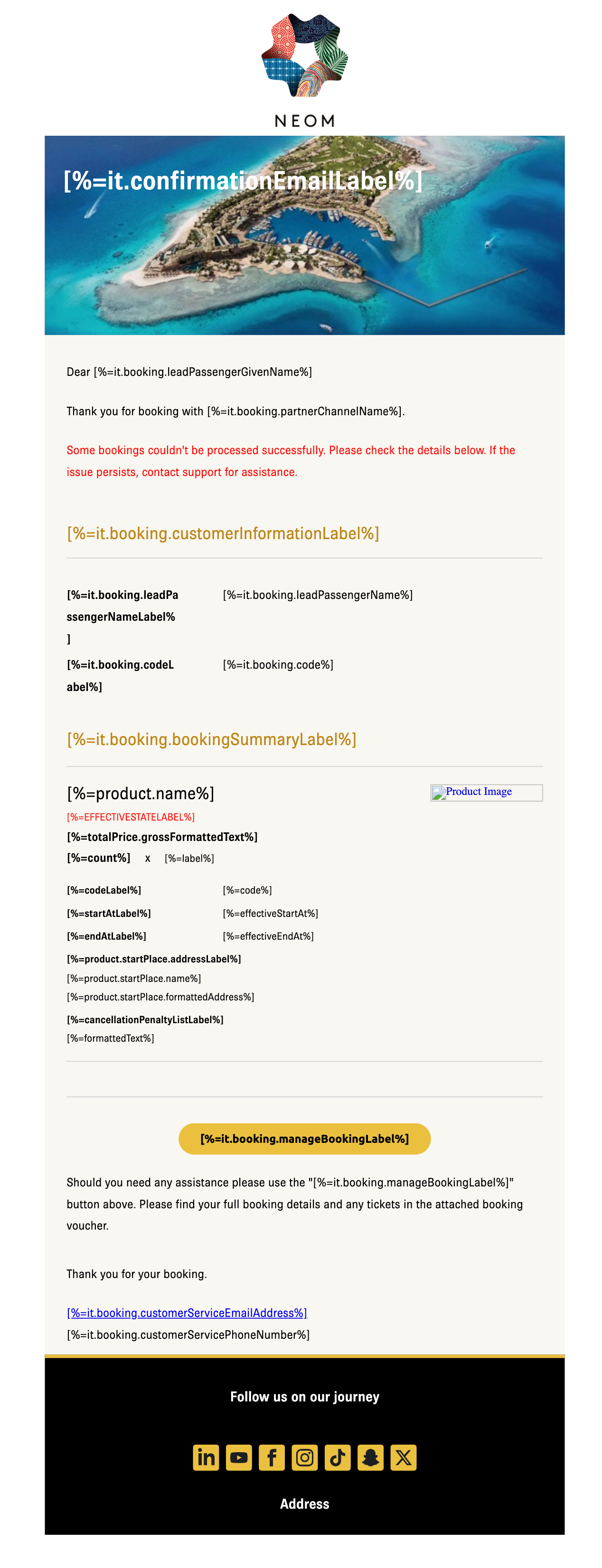
Example
The template shown is specific to a given partner channel.
Replacement Values
Values to be replaced are enclosed by [% … %]
Values are also prefixed by “it.” to indicate that where appropriate they will be subject to internationalisation such as for the formatting of dates, times and numbers.
Images
All images in the template must first be uploaded to the Holibob Image CDN and an appropriate URL with base64 encoded size data used to load the image in the template.
Fonts
The default fonts and styles are included in the metadata at the head of the template code.
Template Code
The code below is the MJML for the template shown above.
Extranet UX
The Consumer Trip Booking Email Management screen displays all relevant information for quickly understanding recipients and reasons.
NOT IMPLEMENTED
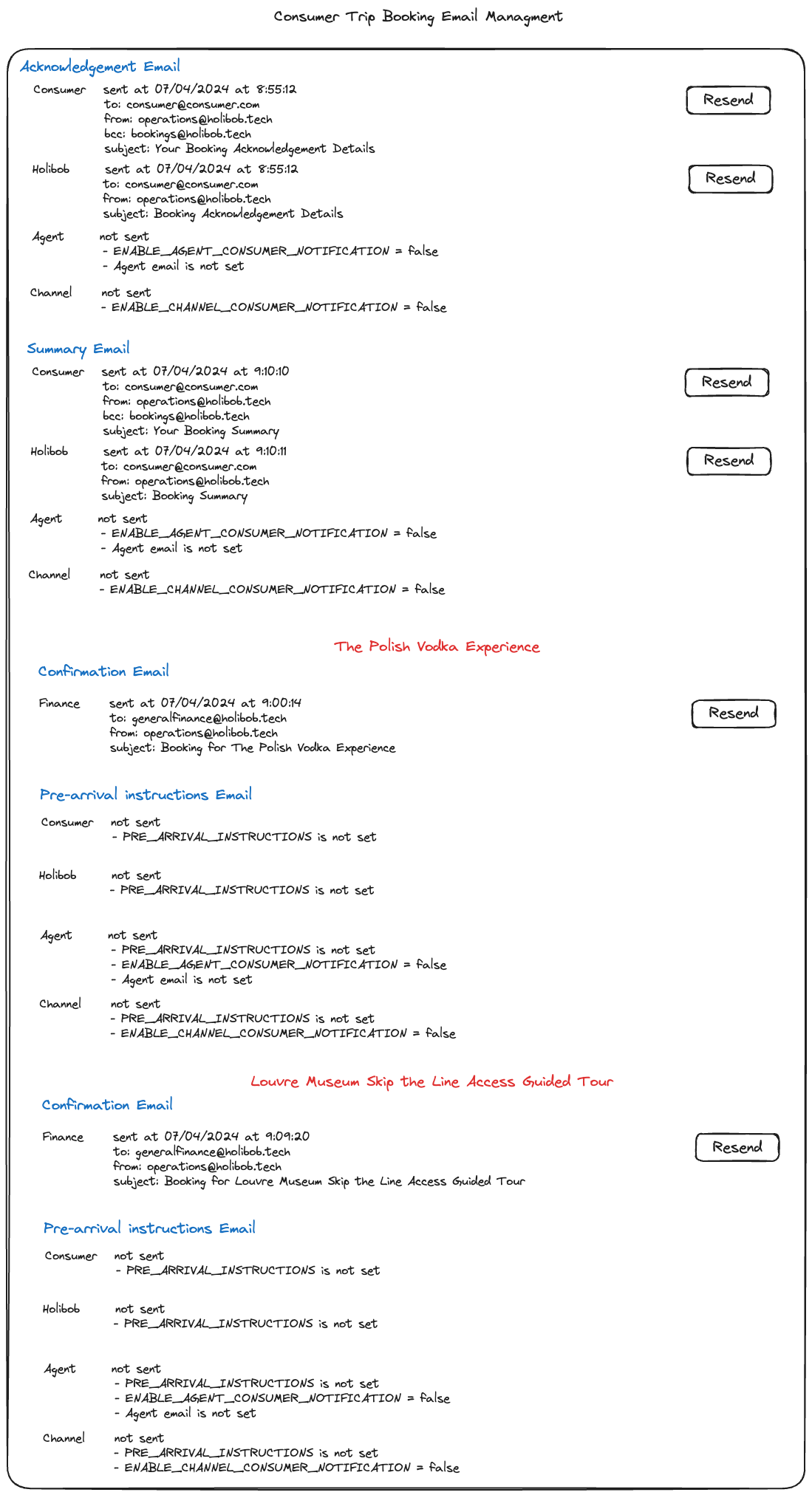
https://excalidraw.com/#json=C0CN8Y7hKXYiGVP5DxQ9H,DBDvSqegjmSIMgvikCRtqA
Testing
On Staging and Isolated environments HOLIBOB, SUPPLIER, CHANNEL and FINANCE type emails are sent to test-email-flow@holibob.tech shared email.
To add the shared email to your Outlook: File -> Open -> Shared Mailbox... -> Search for "Test Email Flow" -> select test-email-flow@holibob.tech
Notes
AGENT and CONSUMER emails are always sent to the actual addresses of the consumer and agent who created the booking.
some states and configurations prevent to send an email (e.g. availability confirmation email is sent only for INTERNAL)
you can always check the recipients and reasons why certain emails are not sent in System Log in Extranet (HUB - Holibob administration). You can search by Booking ID (for Booking Emails) or by Booking Availability ID (for Booking Availability Emails)