Image Handler Service and Delivery Network
Introduction
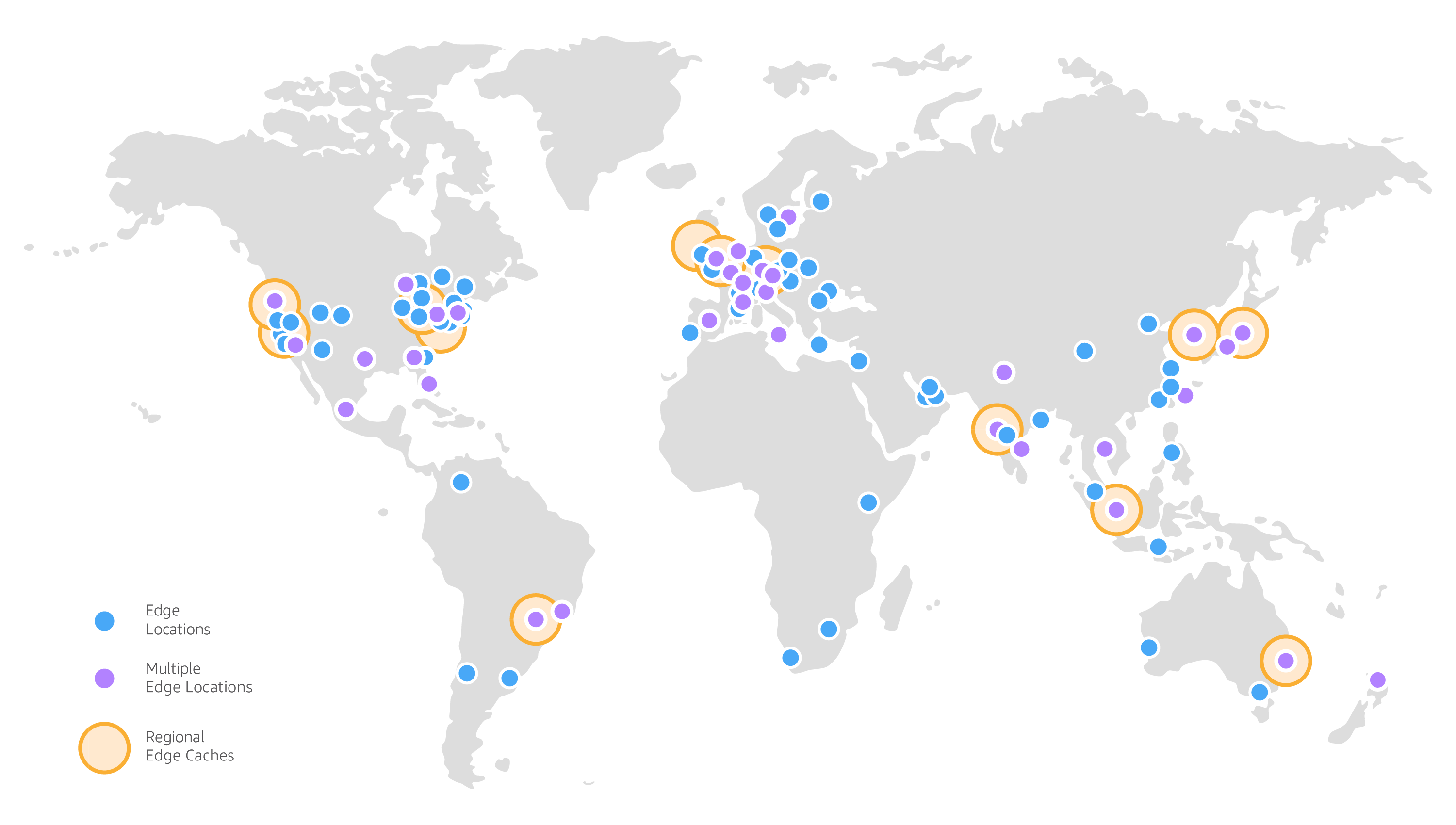
All of the images that Holibob host in relation to products, bookings and any other domain are served via our global content delivery network.
The Holibob CDN peers with thousands of Tier 1/2/3 telecom carriers globally, is well connected with all major access networks for optimal performance. The system is fully redundant and supports dynamic content acceleration.
All of our images are available across a global network of 275+ Points of Presence in 90+ cities across 47 countries.
The map below details the main nodes available today
The base URL for our image CDN is simply: https://images.holibob.tech/
Intelligent routing will ensure that no matter where in the world the request originates from, it will be routed to the node having the lowest latency.
Forming an image URL
The URL for a single image consists of the base URL followed by a string that encodes the imageId along with the dimensions and any cropping or transformations that you require.
There is no requirement to authenticate to this service
An example of a fully formed URL is:-
https://images.holibob.tech/eyJrZXkiOiJwcm9kdWN0SW1hZ2VzL2EzYTQwOTQ3LWI2NzYtNDlkOC04MjNmLWUzYmI1OGI5NzEyZSIsImVkaXRzIjp7InJlc2l6ZSI6eyJmaXQiOiJjb3ZlciIsIndpZHRoIjo4MCwiaGVpZ2h0Ijo0NX19fQ==
This is essentially just a call to: https://image.holibob.tech/ followed by a base64 encoded JSON object
In the example above the JSON object that was encoded and passed was:
{
  "key":"productImages/a3a40947-b676-49d8-823f-e3bb58b9712e",
  "edits":{
    "resize":{
      "fit":"cover",
    }
  }
}
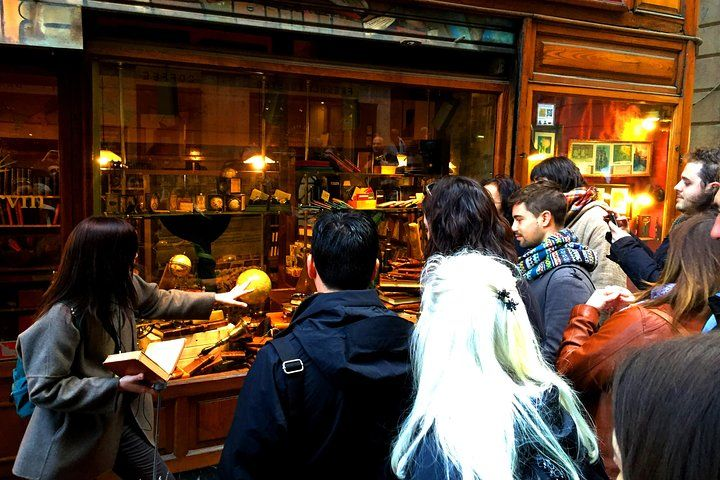
This will result in the image shown
Right Size
In the above example, the full resolution image will be delivered however it is likely to be significantly larger than you require and as such will take longer to load, especially on mobile devices, and waste network bandwidth.
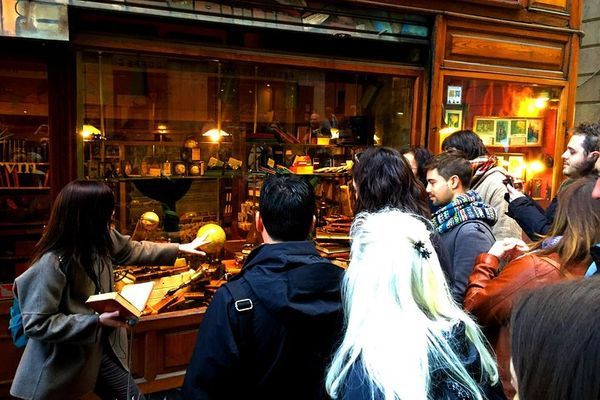
We recommend that you provide either height or width. This will result in an image having a 16:9 ratio and having the exact width or height you requested as in the example below:-
{
  "bucket": "tech.holibob.images.public",
  "key": "productImages/a3a40947-b676-49d8-823f-e3bb58b9712e",
  "edits": {
    "resize": {
      "width": 400,
      "fit": "cover"
    }
  }
}
Different Aspect Ration
Should you require a different aspect ratio such as a square thumbnail then you can specify both height and width. In this scenario, the image will be cropped and delivered in the exact dimension requested.
So a change to the above JSON with a width and height of 100 would deliver a square image as below:
Effects
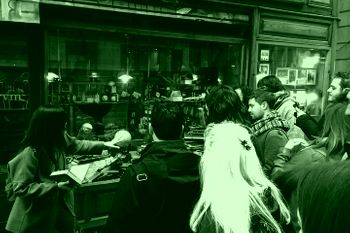
You can also apply various effects to an image such as tinting which may be used to make the images fit better within the theme of the site you are delivering them on
The following JSON and example show tinting in action:-
{
  "bucket": "tech.holibob.images.public",
  "key": "productImages/a3a40947-b676-49d8-823f-e3bb58b9712e",
  "edits": {
    "resize": {
      "width": 200,
      "fit": "cover"
    },
    "flatten": true,
    "normalise": true,
    "tint": {
      "r": 0,
      "g": 50,
      "b": 0
    }
  }
}
Authentication
You are not required to pass any authentication to the image processor.
This is an intentionally public service however you will of course have previously authenticated to the Holibob GraphQL API in order to retrieve the ID of images related to the product or other assets.
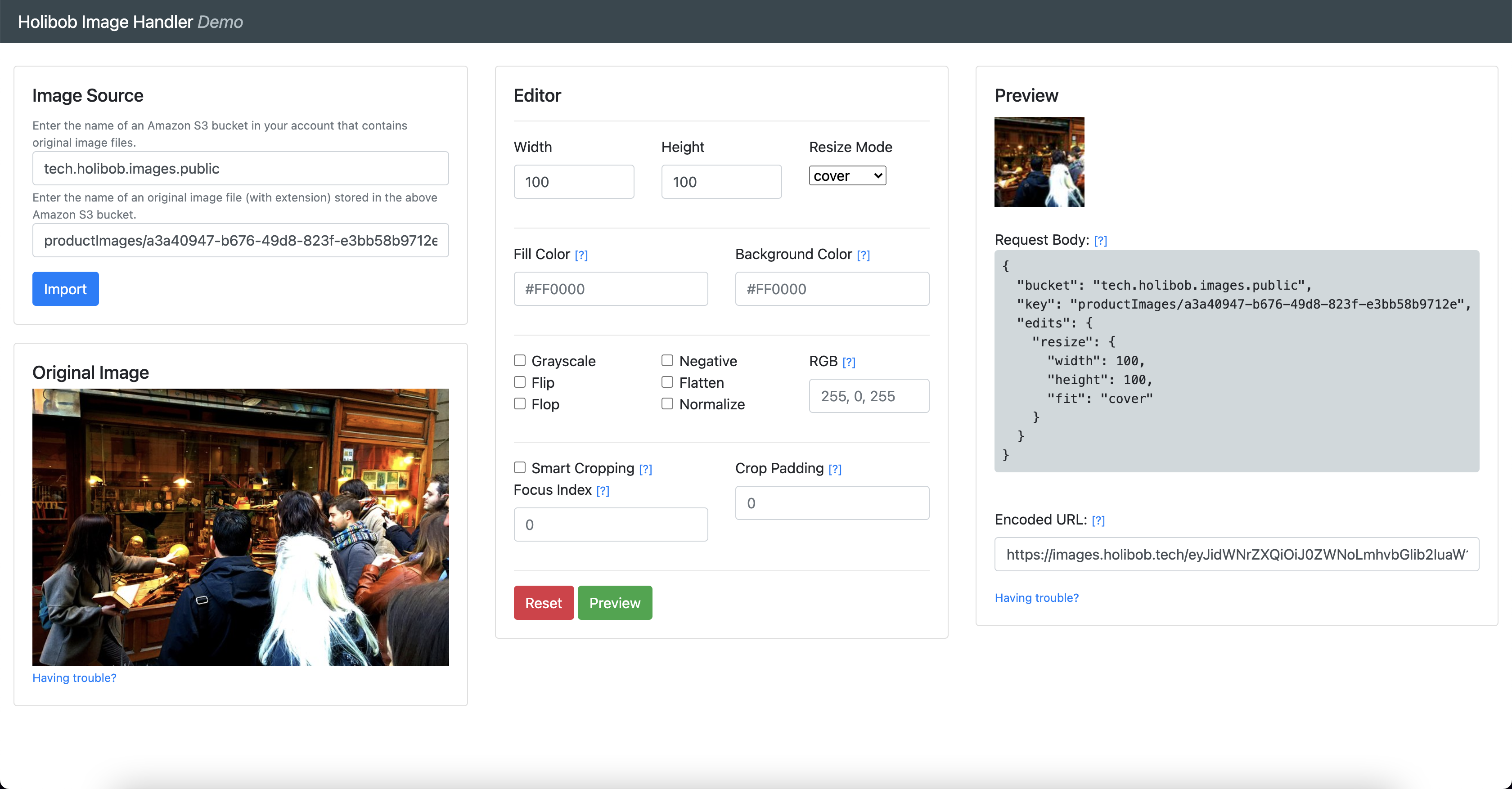
Image Handler Demo
We provide a demonstration of the capabilities of this service at the following URL
Demo URL: https://imageadmin.holibob.tech/
When using this interface provide the following properties in the left-hand panel
S3 Bucket: tech.holibob.images.public
Image Path: productImages/<ID of the Image you require>

For images relating to domains other than Product please contact your account manager for details of the correct image path.
Click the Import to display the original image
In the centre panel, set the properties that you want the service to apply to the image and click the Preview button.
The right-hand panel will now display the resulting image along with the JSON object that was encoded on the URL
The final encoded URL will be displayed. This is what you would pass to an image component in a website or embed in an email or other campaign material.